Problem: YouTube video links are not always accessible for our students at home.
Solution: You can copy YouTube links and paste them into this free application: ClipGrab. With ClipGrab, you can easily download the actual file, then upload to Canvas or OneDrive.
First, you will need to install the ClipGrab app on your laptop. https://clipgrab.org/
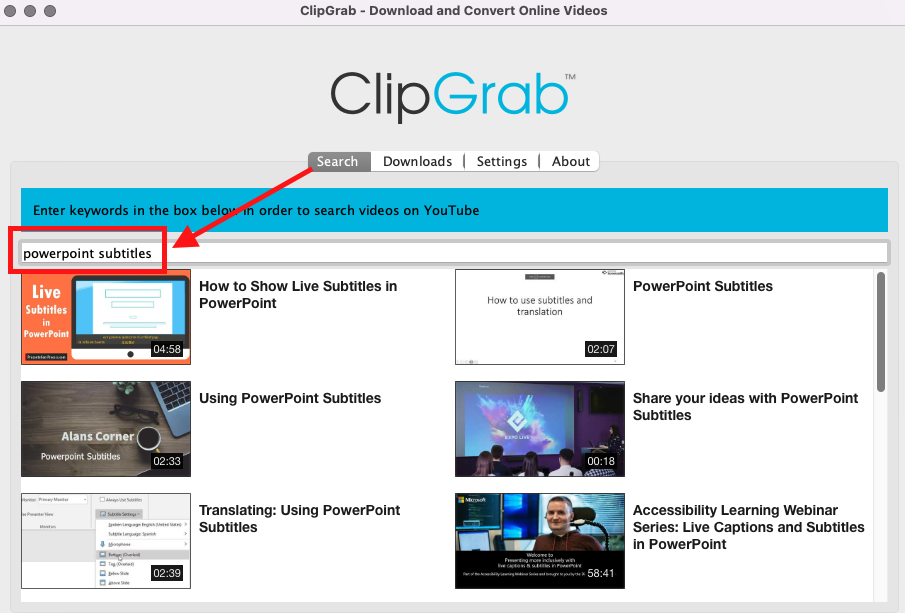
You can search for videos in ClipGrab or copy the URL from YouTube and paste in ClipGrab.
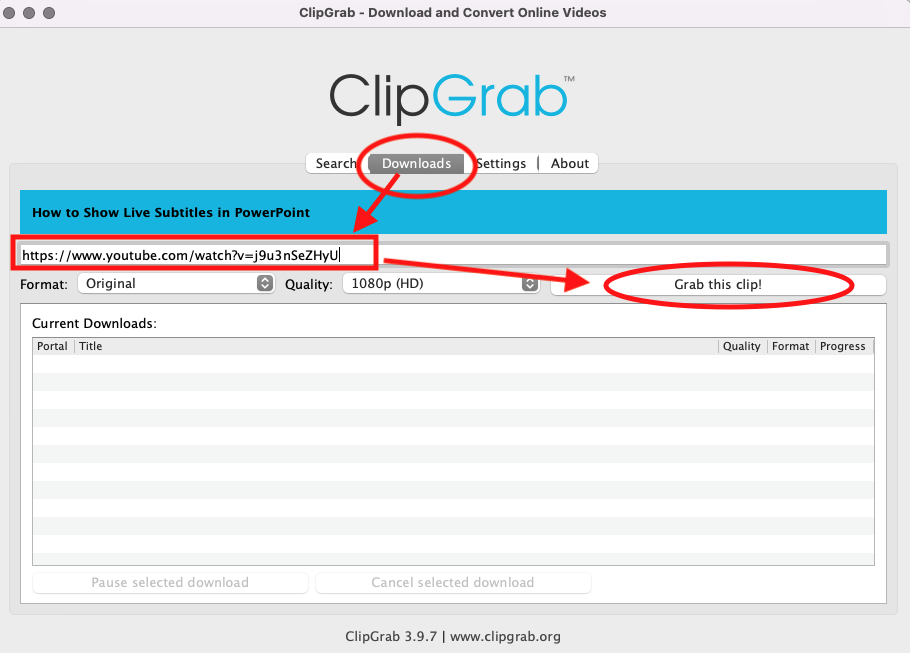
Once you click “Grab this clip!” you will need to decide where you would like the video to download.
If you saved the video to OneDrive, you can share the link with students.
OR
You can also upload the video to Canvas. This is a great option for students when they are not on campus. Here’s how to do it:
Open Canvas –> Courses –> Files
You can click “upload” and locate the file you saved from ClipGrab. Alternatively you may want to create folders “+Folder”, then upload for organizational purposes.
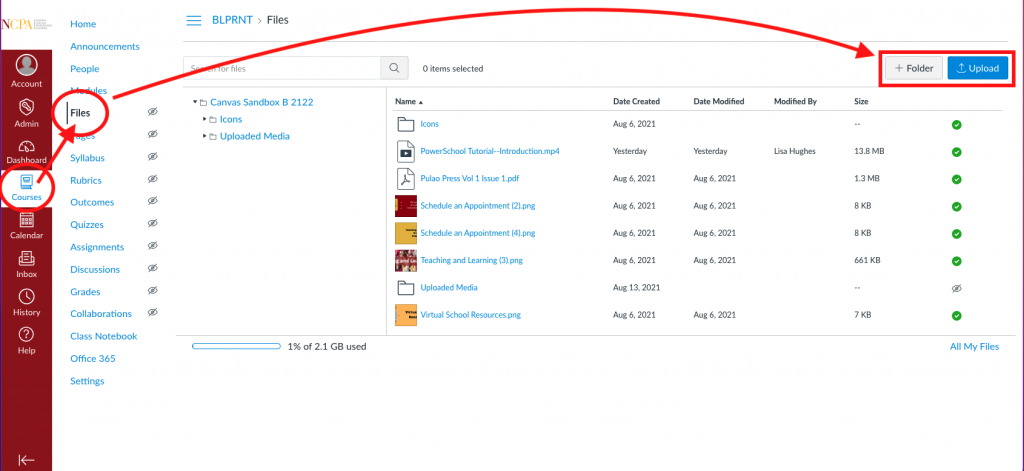
After you click upload you will see your video listed. The size of the file will determine how long this will take.
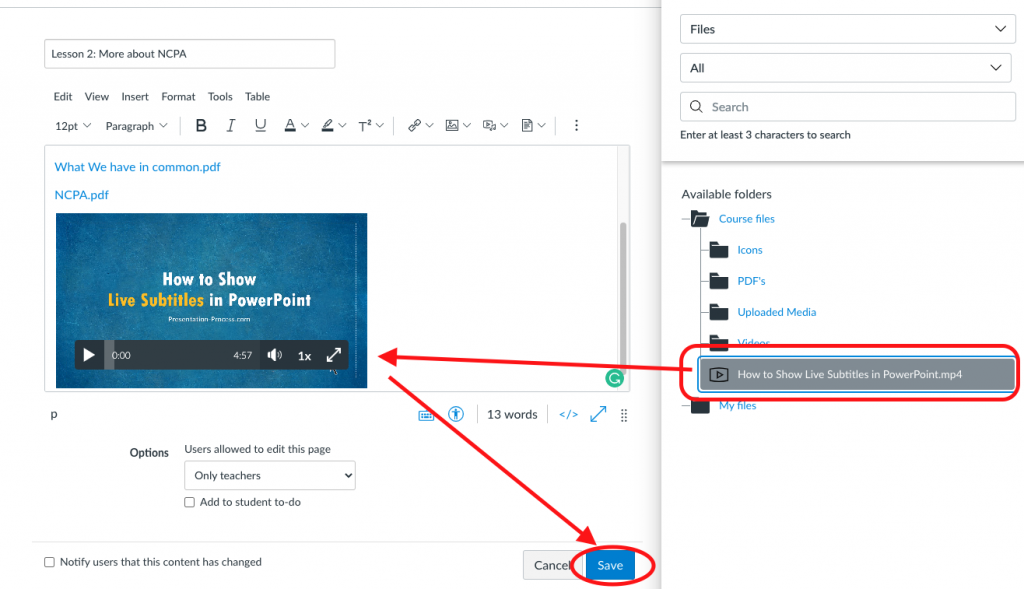
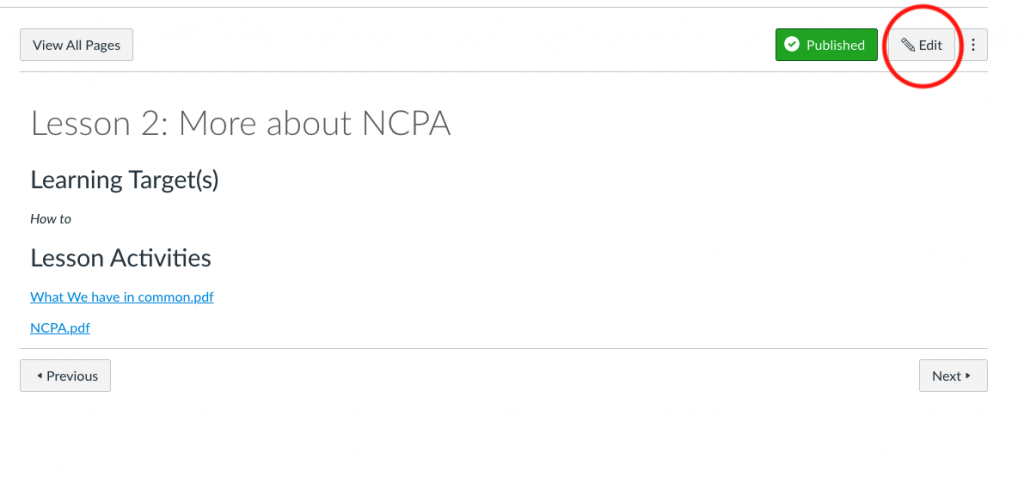
Then locate the module/lesson where you would like to add the video. Click “Edit”
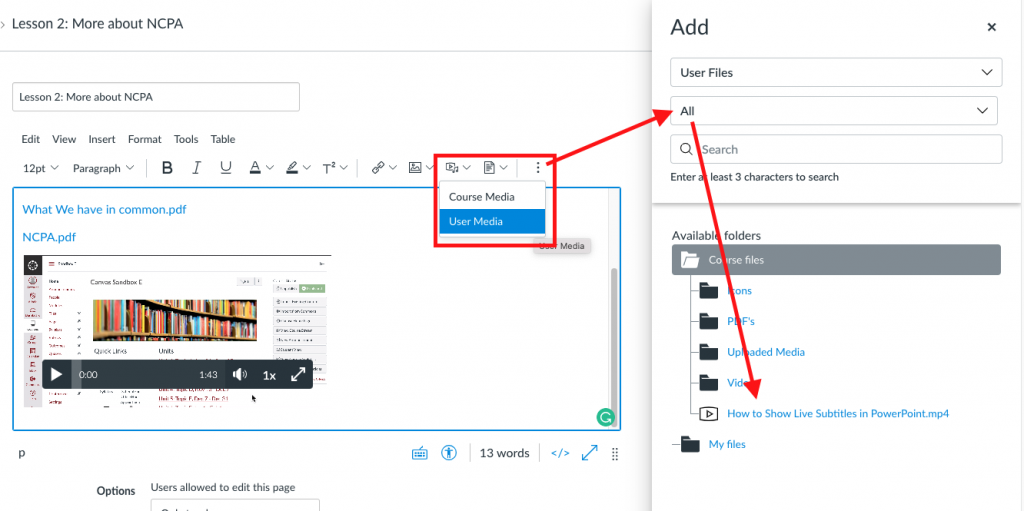
Select the video you would like to insert on the page. It will appear in the editing box. Then click “Save”.