Table of Contents
This instruction applies to GUIS, GUIS-NCPA and GUIS-ULC
On MacOS machine #
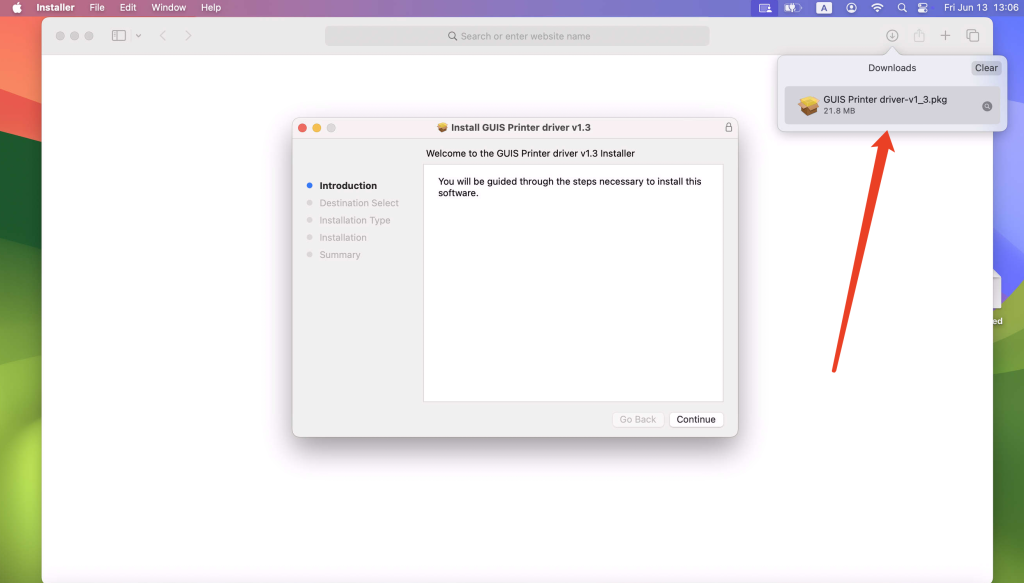
- Please navigate to https://go.guiscn.com/get-printer (🔒On-campus network only) via your favorite browser, click the download button, and then double-click the file called “GUIS Printer driver-v[*.*.*.*].dmg” to mount and run the pkg installer.
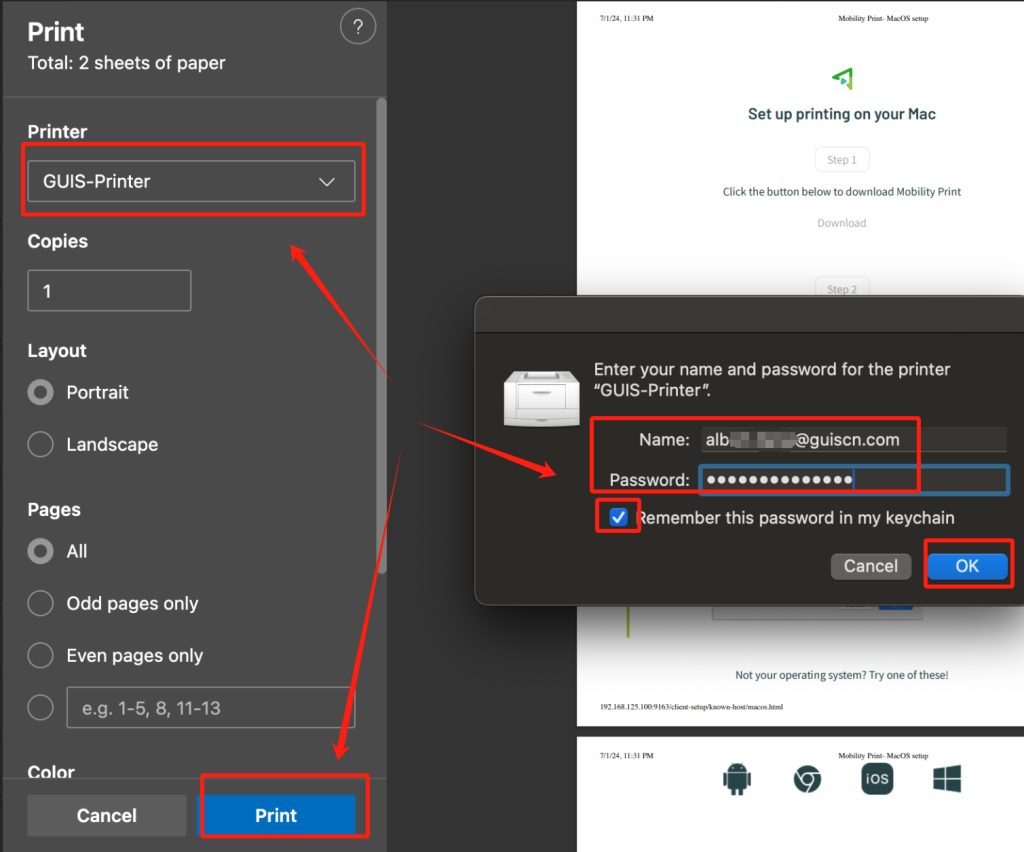
- If you see this pop-up, enter your full email address (GUIS: ***@guiscn.com) and email password, then check “Remember this password in my keychain”. Your username will be different from the one that automatically appears.
On the Windows machine #
- Please navigate to https://go.ncpachina.org/guis-printer-setup-windows (🔒On-campus network only) via your favorite browser, click the download button, and then double-click the file called “pc-mobility-print-printer-setup-*.*.*[*.*.*.*].exe” run the installer.
- Don’t change the name of the installer.
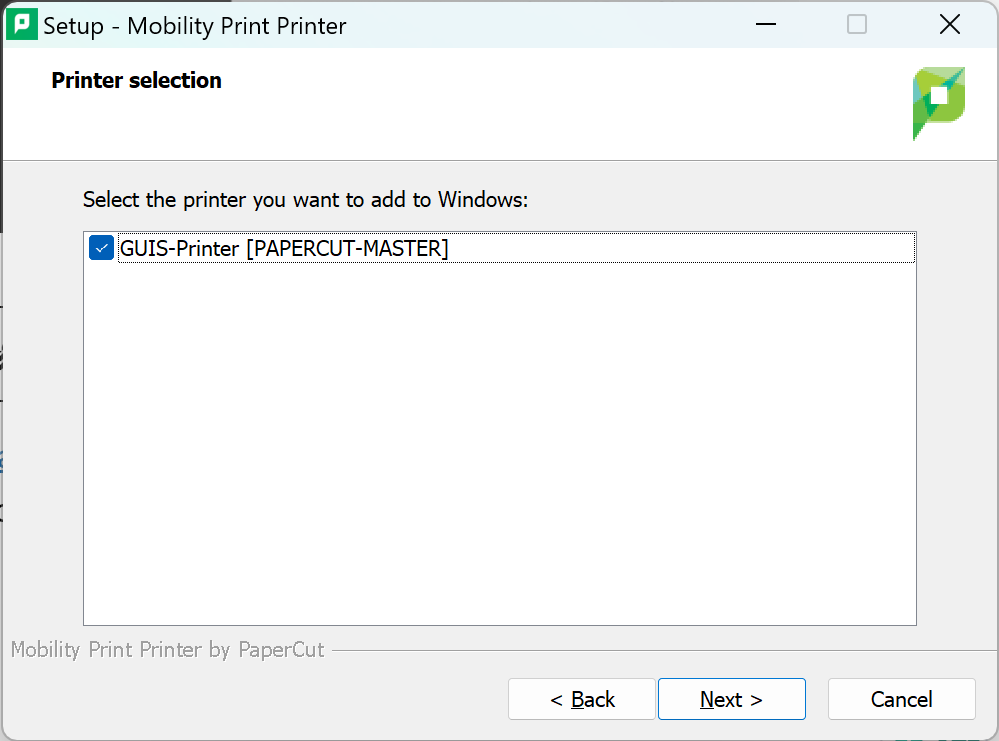
- During the installation, please keep “GUIS-Printer [***]” checked.
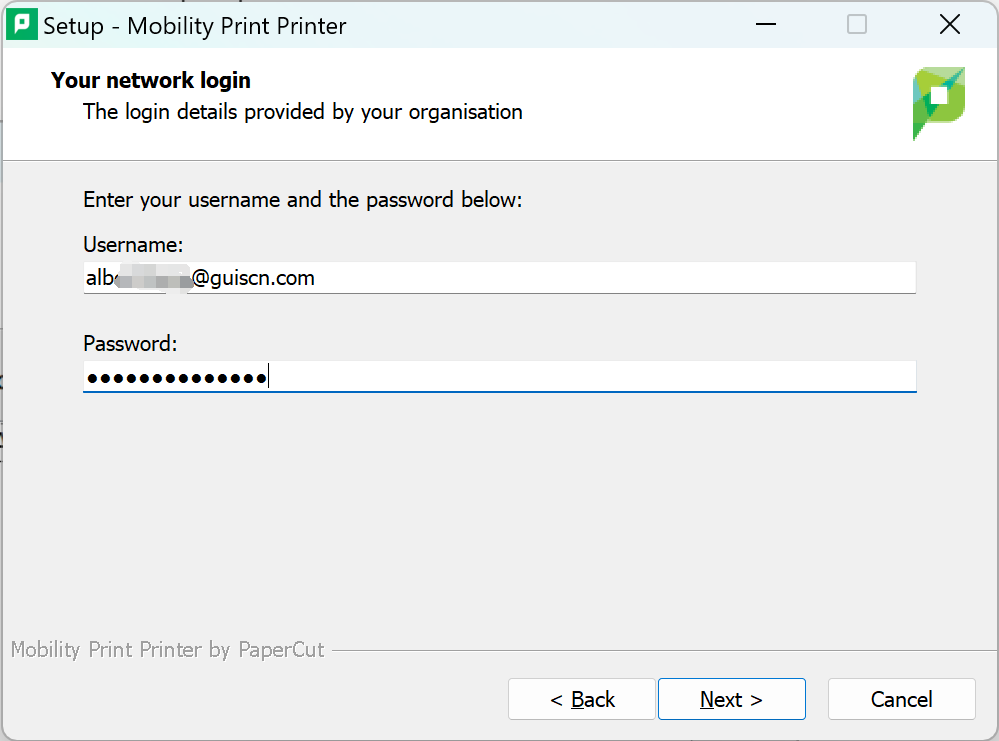
- During the installation, please enter your full email address (GUIS: ***@guiscn.com) and email password.
- Remember to choose “GUIS-Printer [***](Mobility)” as the printer when you print.
On the printer side #
- Touch your ID card to the card reader.
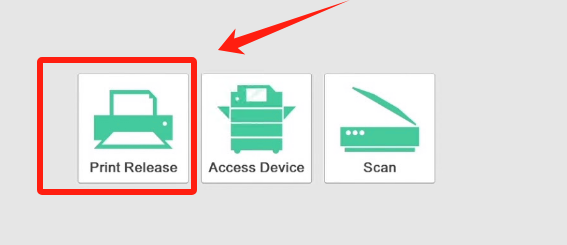
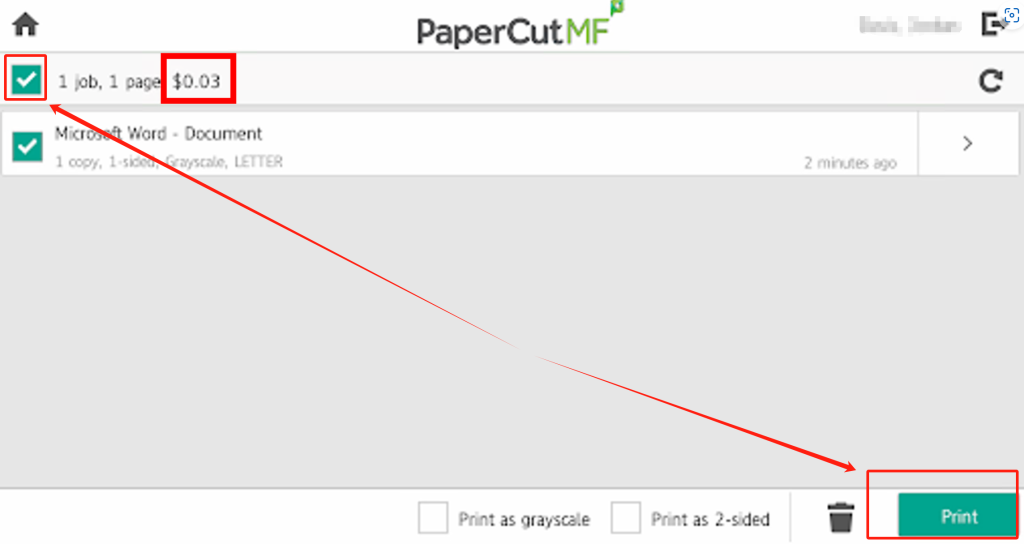
- Use the “Print Release” button to print the document