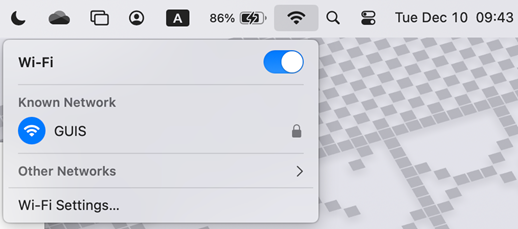
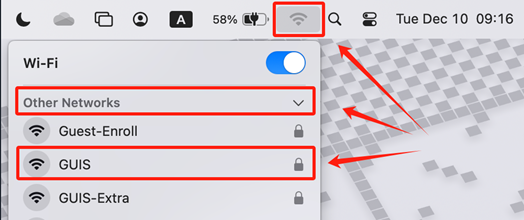
- Click on the Wi-Fi icon located in the upper right of your screen, click on “Other Networks”, select the network “GUIS” from the list of Wi-Fi networks
点击屏幕右上角的 Wi-Fi 图标,点击“其他网络”,从 Wi-Fi 网络列表中选择网络“GUIS”
You must complete the entry of credentials and trust of the certificate within 20 seconds, otherwise the authentication process will be interrupted.
你必须在20秒内完成凭证的输入和证书的信任,否则认证过程将中断。
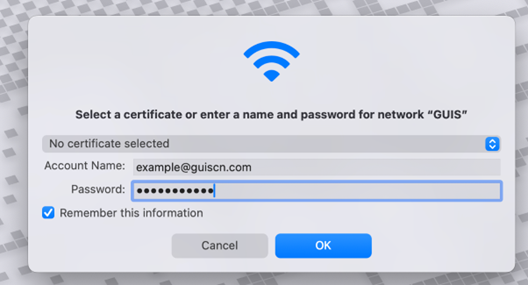
- macOS will prompt you for your WPA 2 Enterprise credentials. Enter your full GUIS/ NCPA/ ULC email address and password
macOS 将提示您输入 WPA 2 Enterprise 凭证。输入您的完整 GUIS/NCPA/ULC 电子邮件地址和密码
| Organization | The “Account Name” format you need to input |
| NCPA | [NetID]@ncpachina.org |
| ULC | [Network ID]@ulinkcollege.com |
| GUIS | [NetID]@guiscn.com |
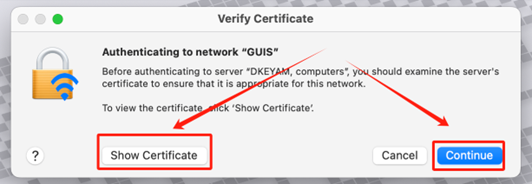
- macOS will prompt you for the server credentials. Click on the “Show Certificate” to verify the certificate fingerprint (See CERTIFICATE FINGERPRINTS). If everything is okay click “Continue”
macOS 将提供您当前的服务器凭据。单击“显示证书”以验证证书指纹(见证书指纹)。如果一切正常,请单击“继续”
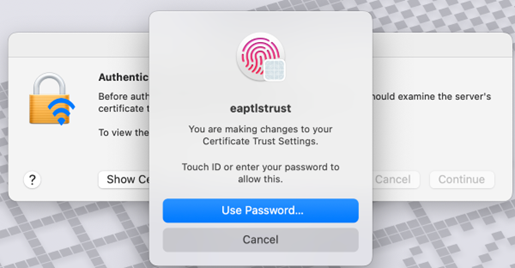
- If you are connecting to the GUIS network for the first time, macOS will also prompt you to verify your system identity to trust this certificate. Please enter the system unlock password or use fingerprint verification. Usually, this password is different from the GUIS/ NCPA/ ULC email address and password.
如果您是首次连接GUIS网络,macOS还将提示您验证你的系统身份以信任此证书,请输入系统解锁密码或使用指纹验证,通常情况下这个密码和GUIS/ NCPA/ ULC 电子邮件地址和密码不一样
- You are now connected to the GUIS Network
你已经连接到GUIS Network