
1.Swipe your School ID Card at the Card Reader on the copier machine
2.Press the Login button on the machine touch panel
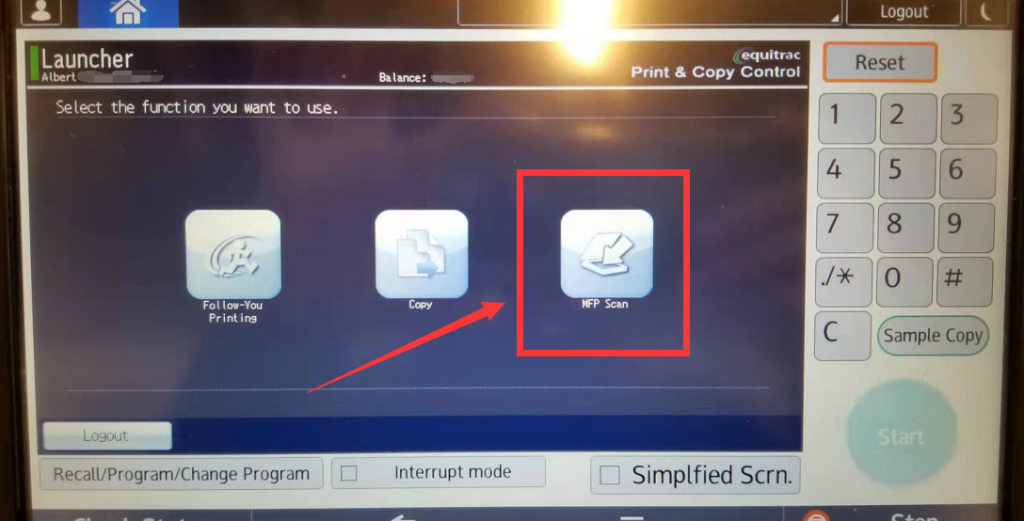
3.Navigate to the scan feature by pressing the MFP Scan button which lies to the left of the touch panel
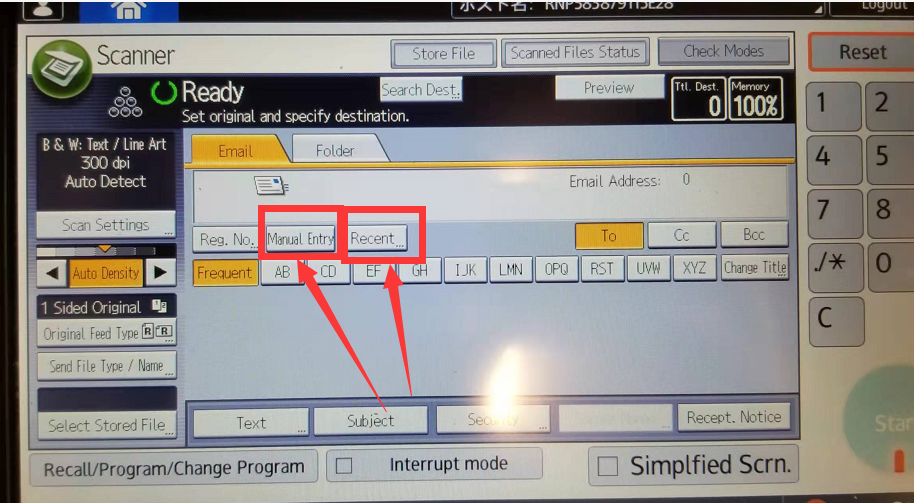
4.Enter the Manual Entry / Recent(Entry before) button for the receiver email
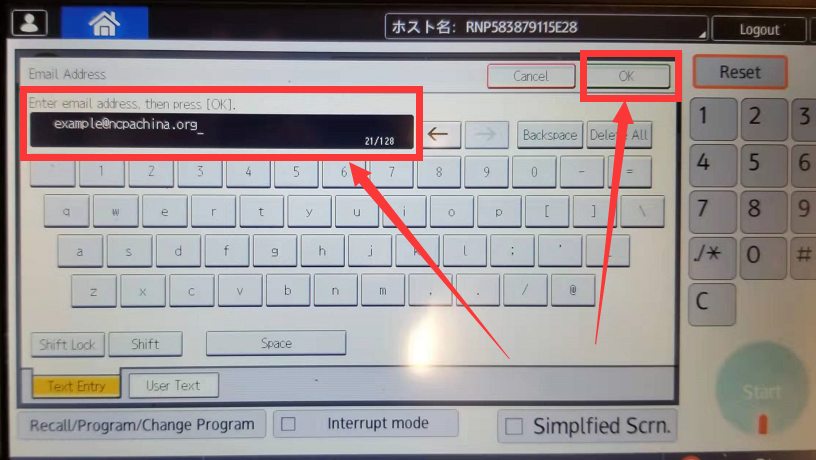
5.Input the receiver’s email address and press the OK button
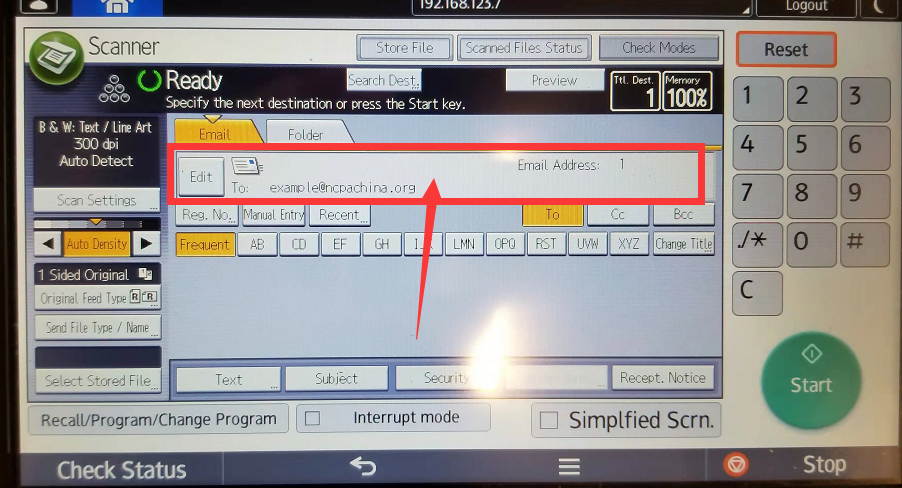
6.[Option] Customize the scanning settings via the touch panel
6.1 Change color setting
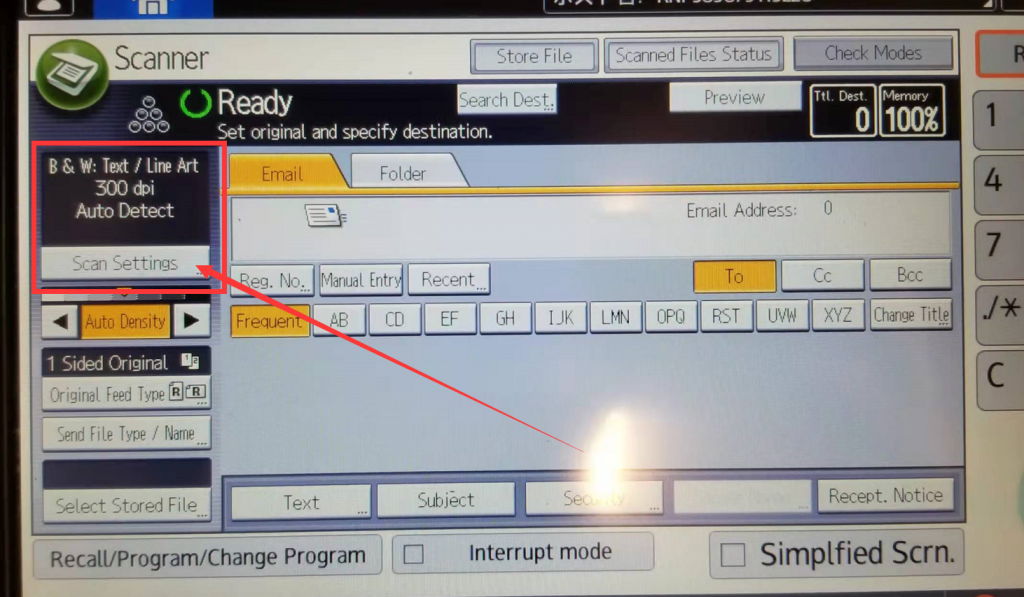
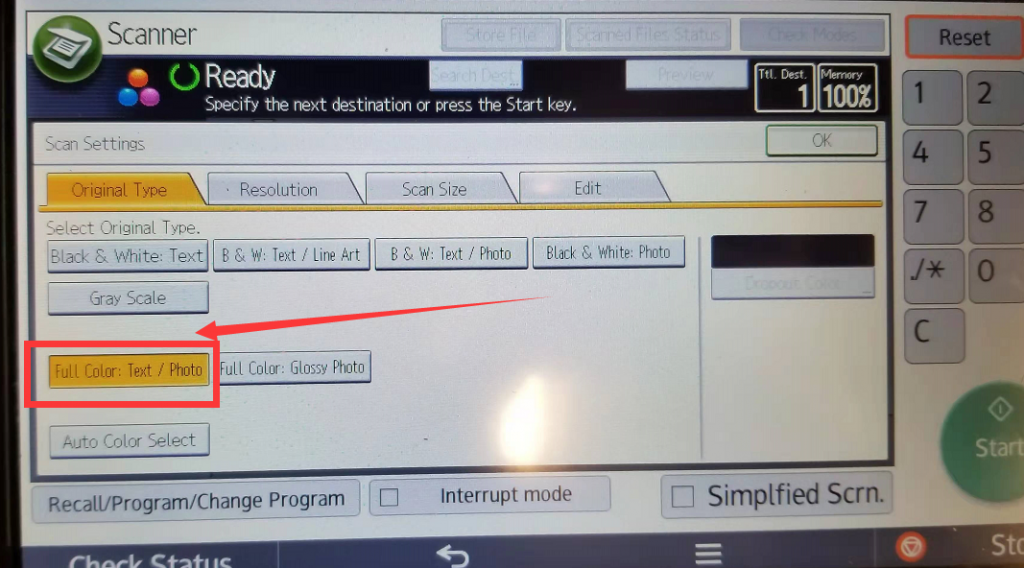
6.2 Change Feed Type settings
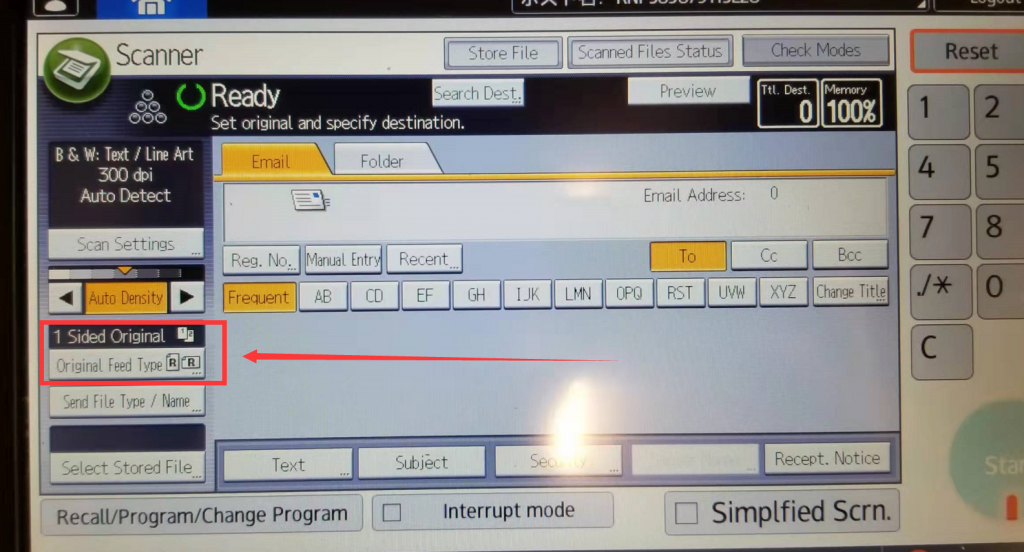
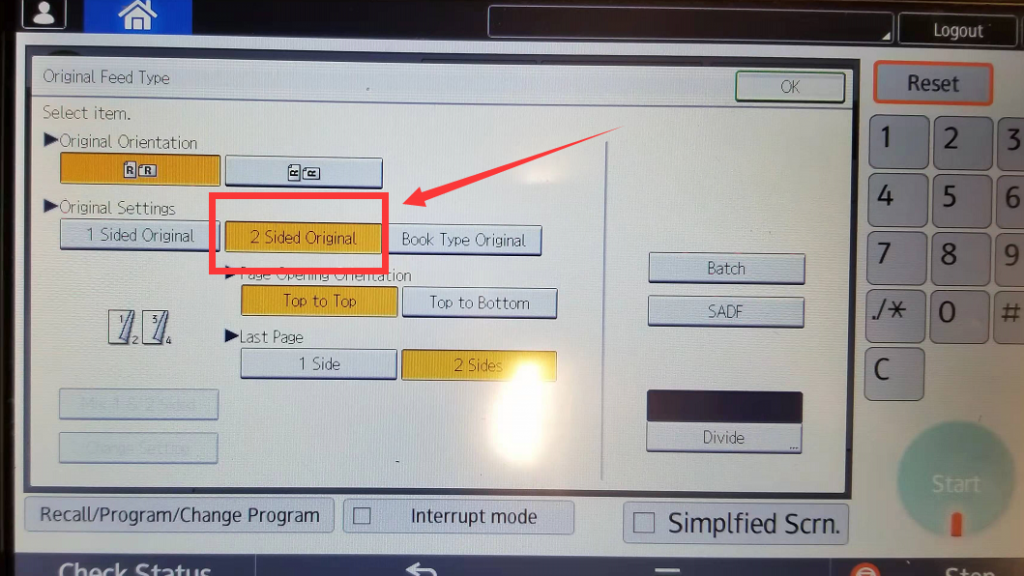
7.Put your paper or copies to Document Feeder
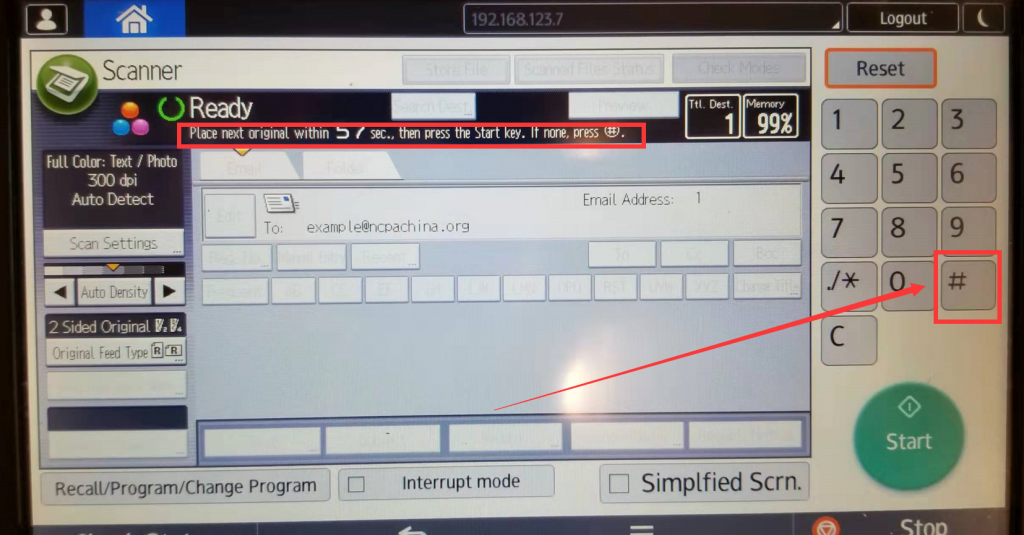
8. Press Scan button (For scan via glass manuscript scanning table, press the # bottom after the final original is needed)
9.Press the Logout button to finish
10.Check your Email to receive the copy
Always feel free to report to the IT Office for scanning errors