
The video below explains how to submit final course grades in PowerTeacher Pro.
Towards the end of the video there is a reference about seeing what students see in PowerSchool. You can access that video in a separate article.Also note that you may see an orange indicator
next to standard scores or final course grades. This means that for a recent assessment a student got a higher score than their automatically calculated score for that standard and you may wish to consider manually overriding their score
Addendum: An important note about terms
In semester 1, make sure you are viewing “S1” and not “Y1” when submitting grades and comments.
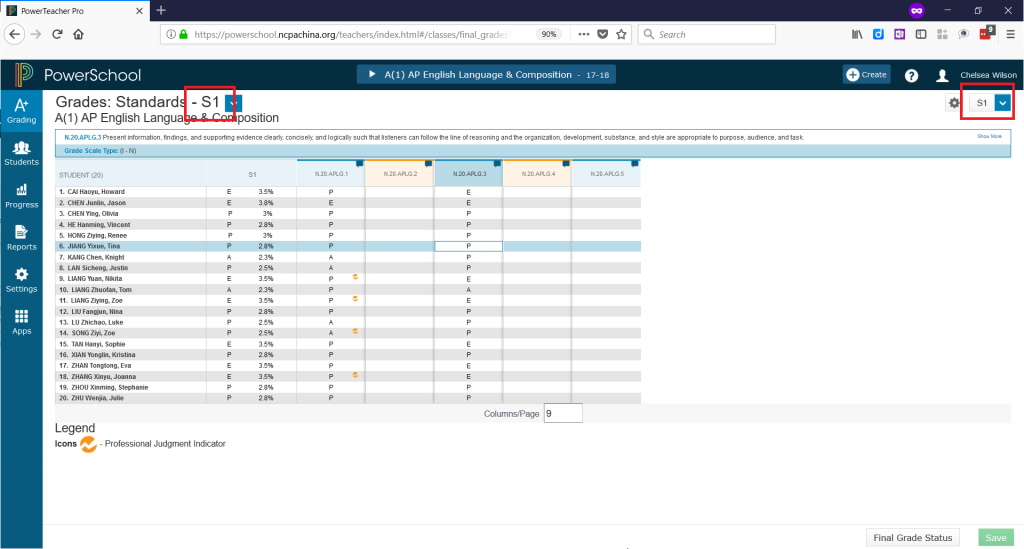
In semester 2, make sure you are viewing “Y1” when submitting grades and comments.
Addendum: Overriding grades
IF you teach an S1-only course AND you want to override a student’s grade, do so in BOTH S1 AND Y1 and put the comment in BOTH S1 and Y1.
IF you teach an S2-only course AND you want to override a student’s grade, do so in Y1 but put the comment in Y1 only.
IF you teach a year-long course AND you want to override a student’s grade in S1, do so in S1 ONLY and put the comment in S1 ONLY.
IF you teach a year-long course AND you want to override a student’s grade for the year, do so in Y1 and put the comment in Y1.