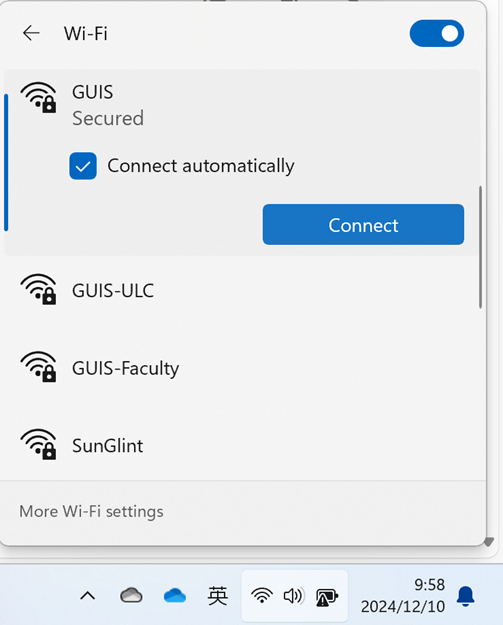
- Click on the Wi-Fi icon located in the lower right of your screen, select the network “GUIS” from the list of Wi-Fi networks, then click “Connect”
点击屏幕右下角的 Wi-Fi 图标,从 Wi-Fi 网络列表中选择网络“GUIS”,然后点击“连接“
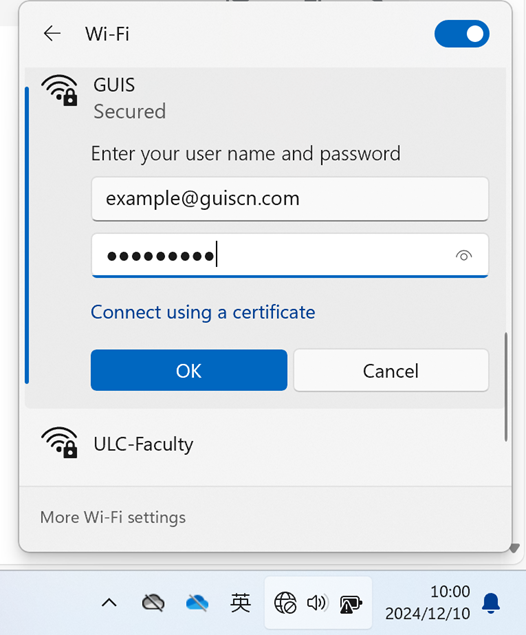
- Windows will prompt you for your WPA 2 Enterprise credentials. Enter your full GUIS/ NCPA/ ULC email address and password
Windows将提示您输入 WPA 2 Enterprise 凭证。输入您的完整 GUIS/NCPA/ULC 电子邮件地址和密码
| Organization | The “User Name” format you need to input |
| NCPA | [NetID]@ncpachina.org |
| ULC | [Network ID]@ulinkcollege.com |
| GUIS | [NetID]@guiscn.com |
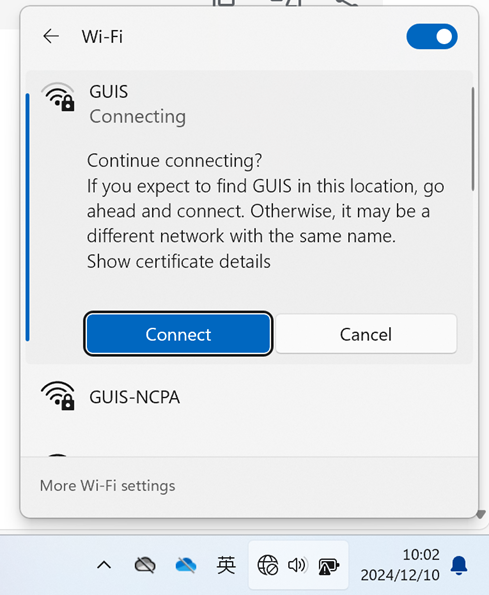
- Windows will prompt you for the server credentials. Click on the “Show certificate details” to verify the certificate fingerprint (See CERTIFICATE FINGERPRINTS). If everything is okay click “Connect”
Windows将提供您当前的服务器凭据。单击“显示证书详情”以验证证书指纹(见证书指纹)。如果一切正常,请单击“连接”
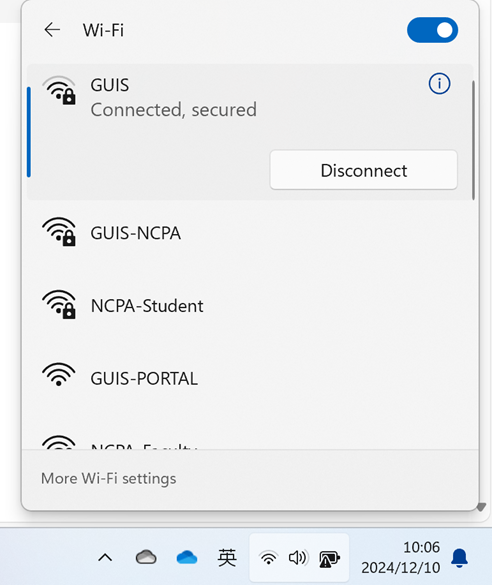
- You are now connected to GUIS Network
你已经连接到GUIS Network