
When you use a browser, like Chrome, it saves some information from websites in its cache and cookies. Clearing them fixes certain problems, like loading or formatting issues on sites.
In Chrome
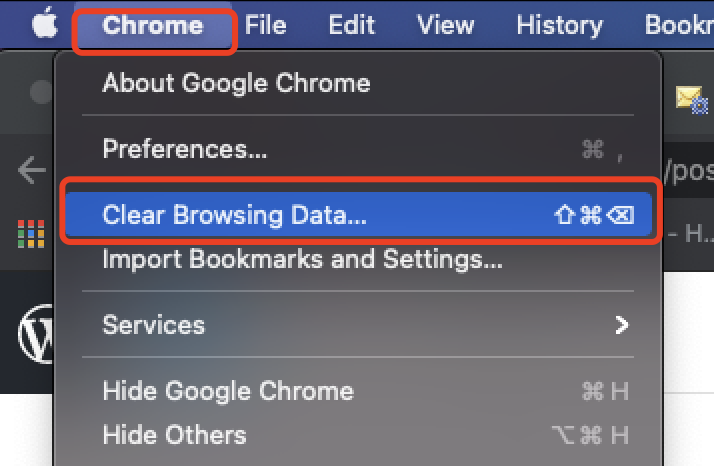
1. On your computer, open Chrome / Edge.
2. At the top left, click Chrome /Edge
3. Click Clear Browsing Data…
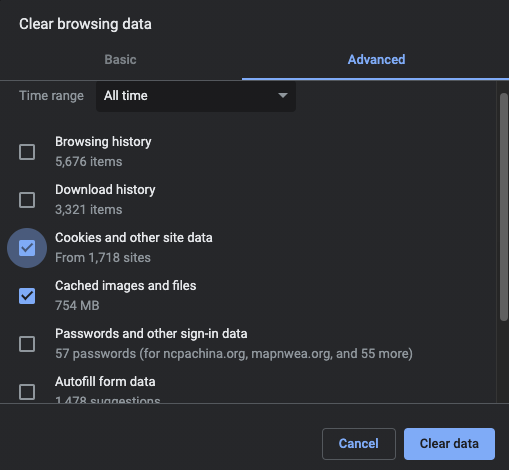
4. At the top, choose a time range. To delete everything, select All time.
5. Next to “Cookies and other site data” and “Cached images and files,” check the boxes.
6. Click Clear data.
After you clear Cache and Cookies, some websites will require you re-login.
If you want to learn how to clear cache for one site and not your whole browser data go to the next article: