
View Categories

How can I filter New Emails into Folders in Outlook?

< 1 min read

Follow these steps to set up automatic email filters for your Outlook account.

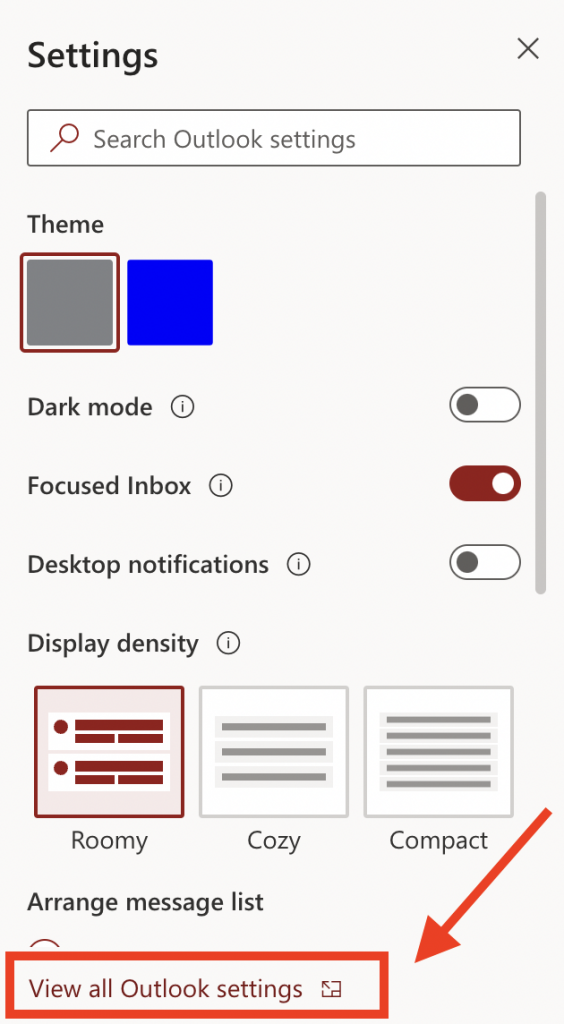
Go to your inbox and click on the settings icon in the top tool bar.

At the bottom of the pop up window click on: View all Outlook Settings
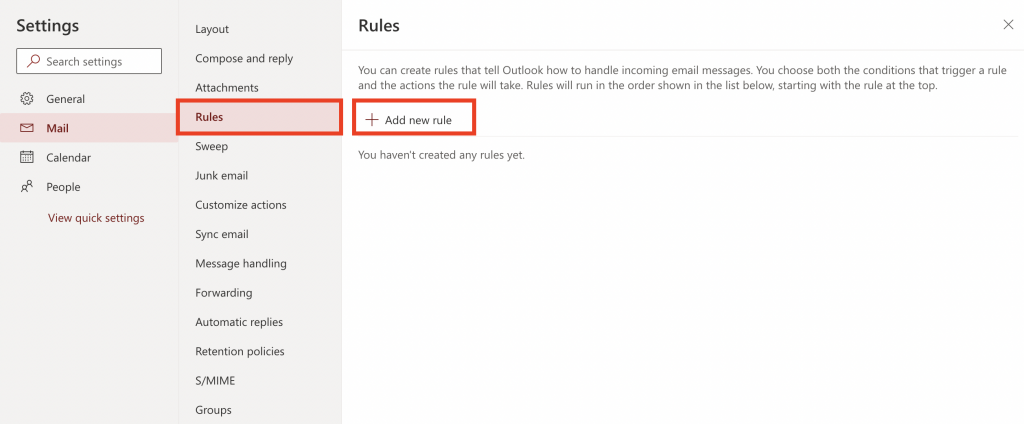
Click on “Rules” and then “Add new rule”.
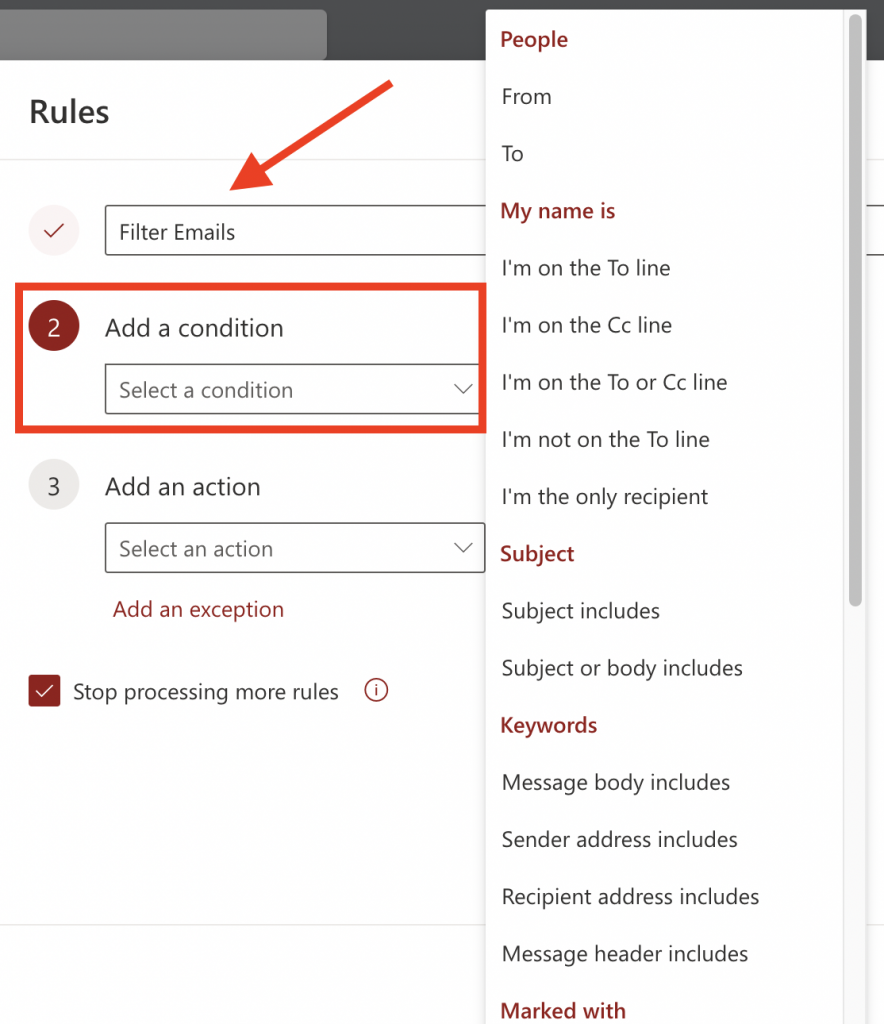
Create a name for the “rule” you want to set up. Then “Select a condition” that you want the rule to follow. You can select multiple conditions.
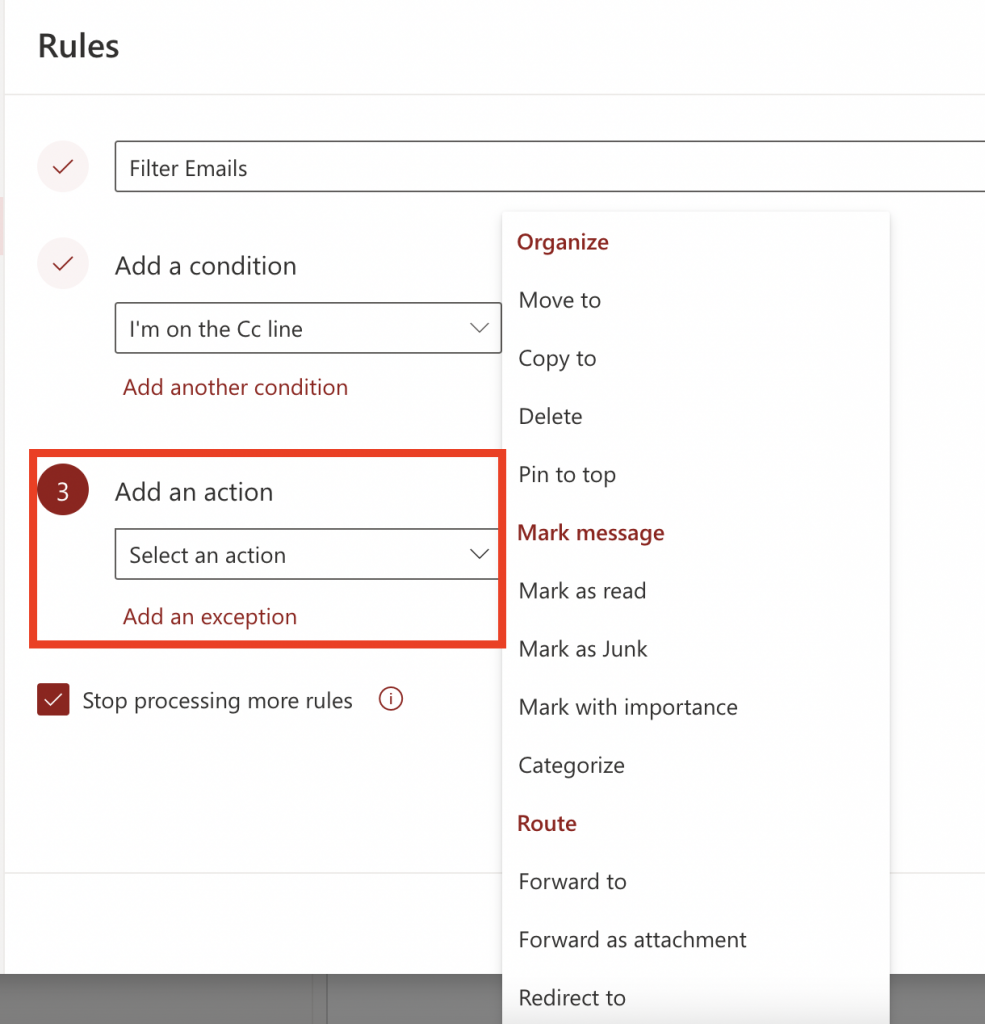
Then add an action(s) to complete the rule and click SAVE.
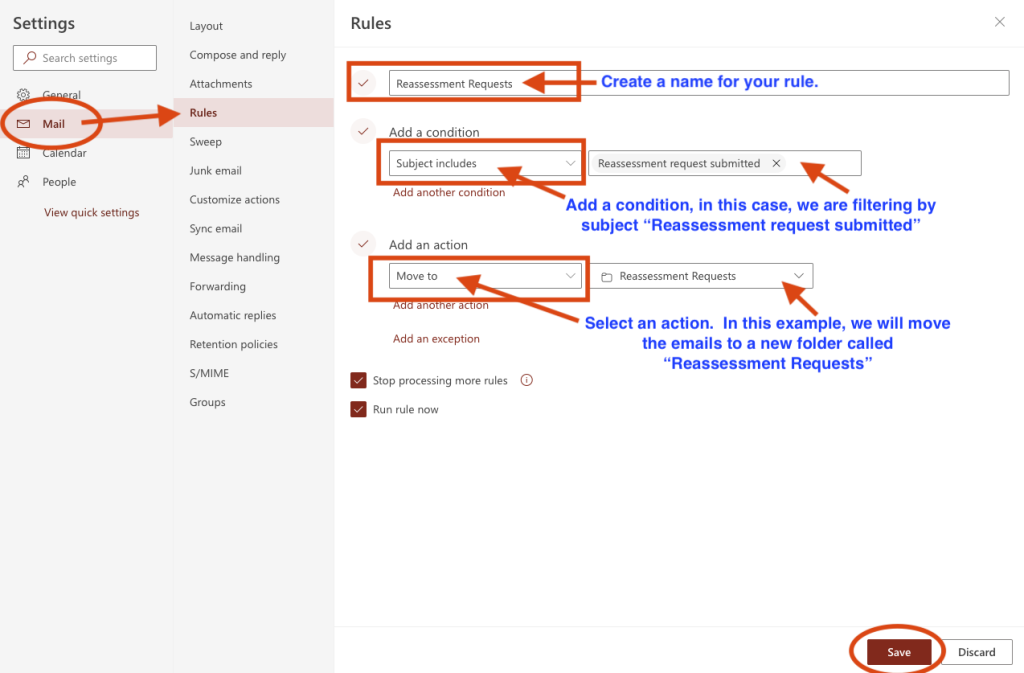
In this example, I have created a rule to filter all emails that contain the subject line “Reassessment request submitted” into a folder in my Outlook. Then, once a student created the reassessment, I can search in the folder and approve their request.

The login method for limited content on this website has been changed to GUISCN.COM's NetID, please use the corresponding browser user profile

本网站受限内容的登录方式已更改为GUISCN.COM的网络身份认证,请使用对应的浏览器用户配置文件

X