This article outlines how to:
- Enable multiple submissions on a new assignment.
- Enable multiple submissions in the Turnitin integration in Canvas on an assignment that has already been created.
- How a student resubmits a submission on Canvas/Turnitin.
Enable multiple submissions on a new assignment. #
After you create a new assignment with Turnitin as the external tool, and before students have made submissions, you can update the settings to allow for multiple submissions until the due date. Follow these steps:
- Click the button that says “Load + Assignment name + in a new window”
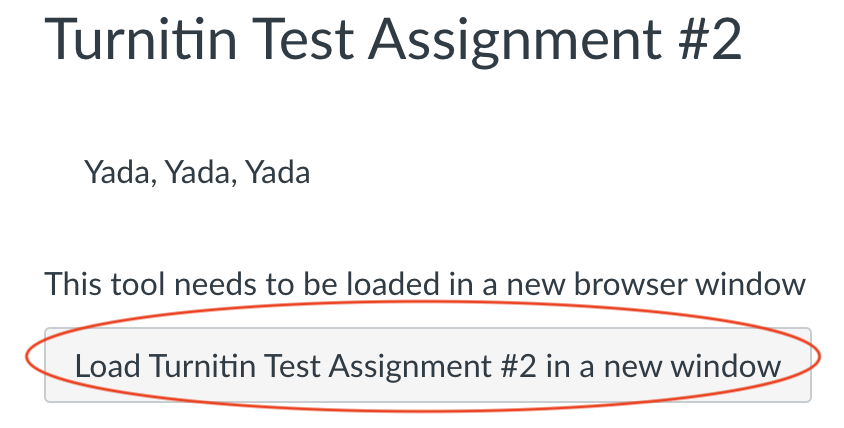
2. Click the gear to see more “Optional Settings”
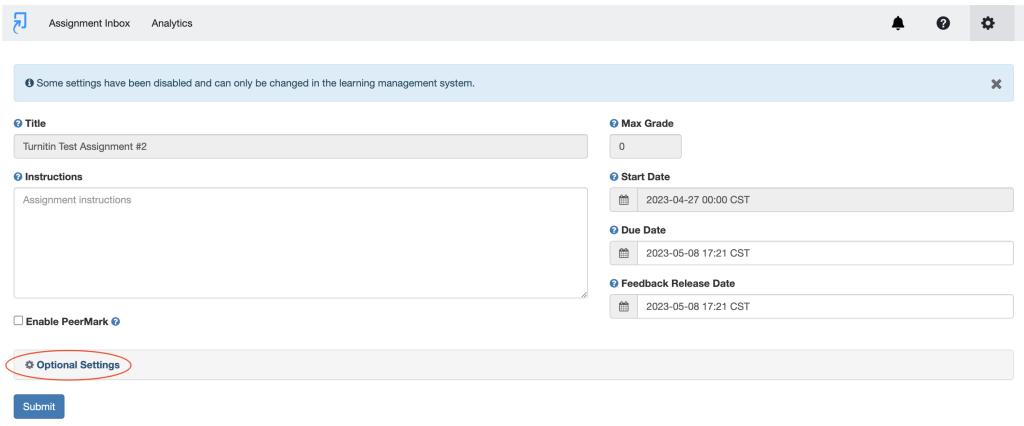
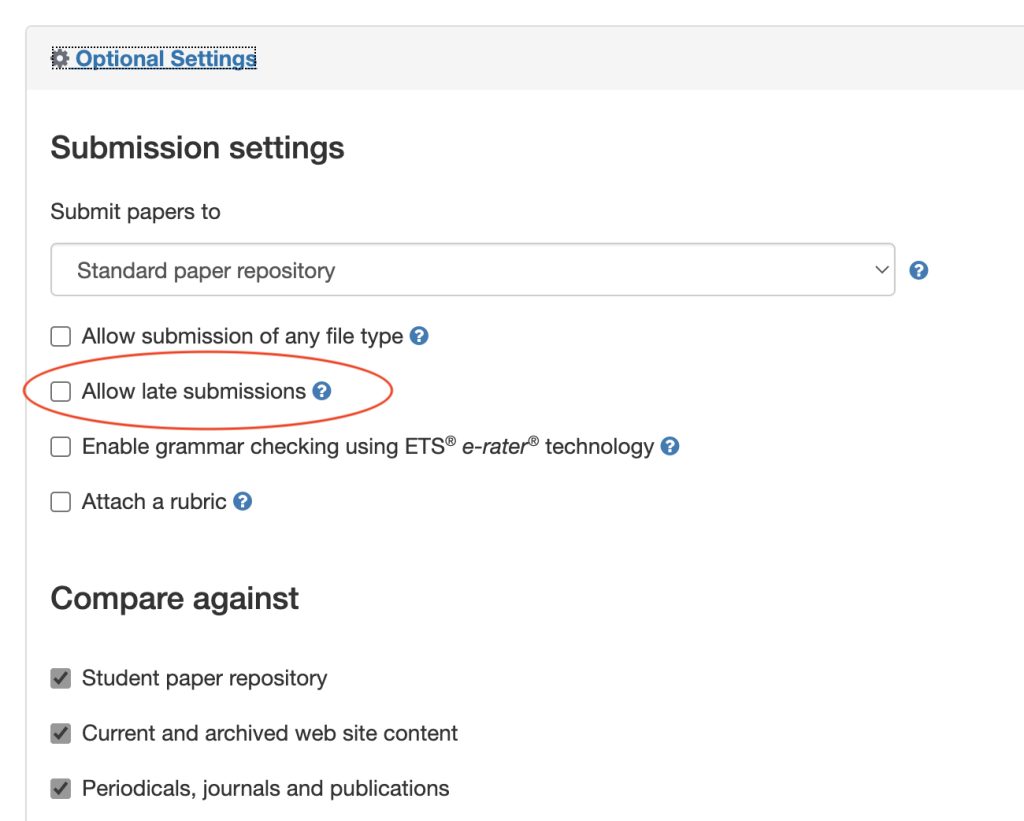
3. Check the box that says “Allow late submissions”, scroll down
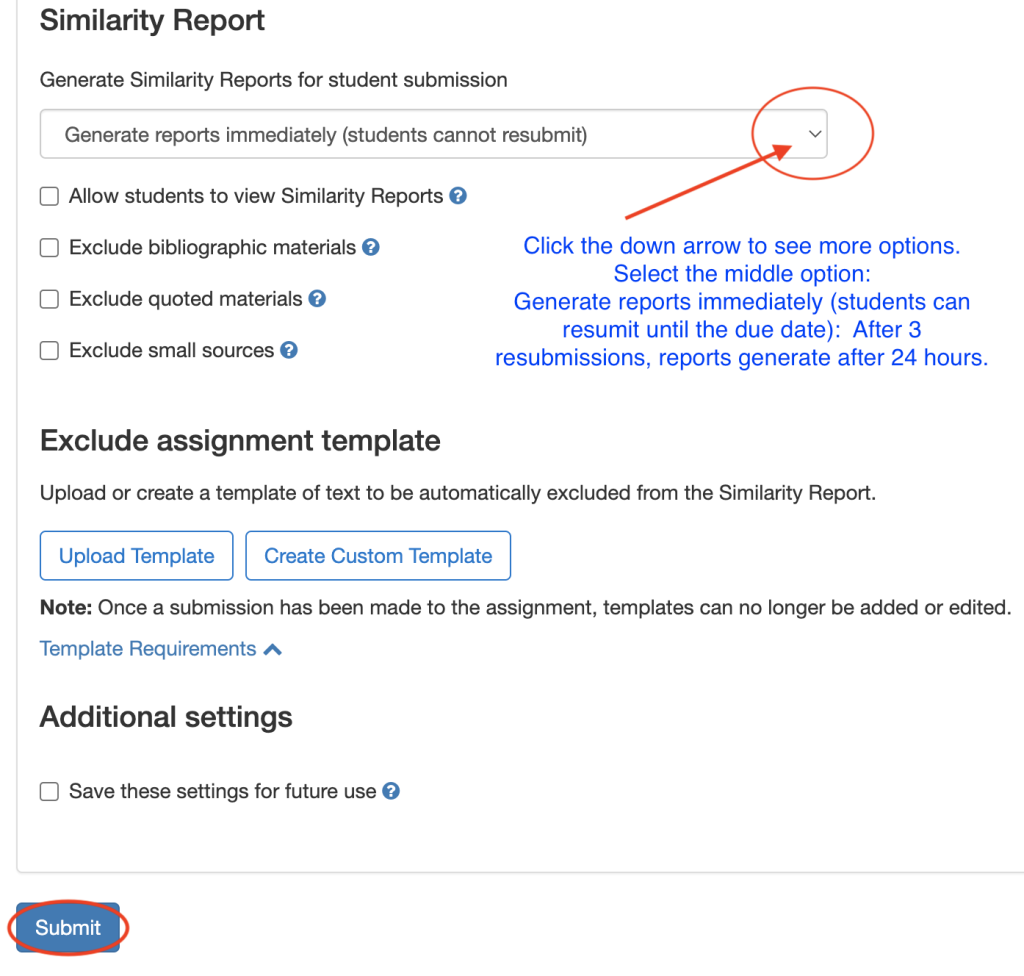
4. Under the Heading “Submission Types”, click the down arrow to see more options”. Select the middle option that says, “Generate reports immediately (students can resubmit until the due date): After 3 resubmissions, reports generate after 24 hours”. Then click “Submit”
Enable multiple submissions in Turnitin integration in Canvas on an assignment that has already been created. #
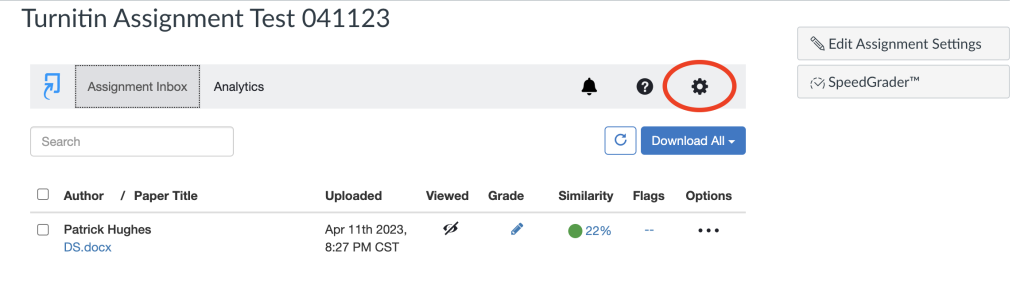
If the assignment has already been created and students have started making submissions, you will already see the information when you go to assignments. Click the gear icon to adjust the settings. Now you will see the “Optional Settings” gear as in the example above.
How a does a student resubmit a submission on Canvas/Turnitin? #
It’s important to note that while with regular Canvas assignments students can submit until the “Date Available”. This does not work with the Turnitin integration. You will need to adjust the “Due Date”.
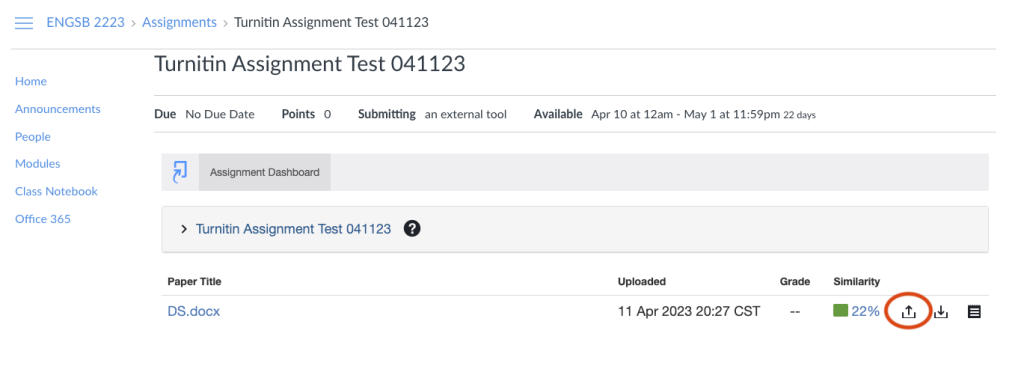
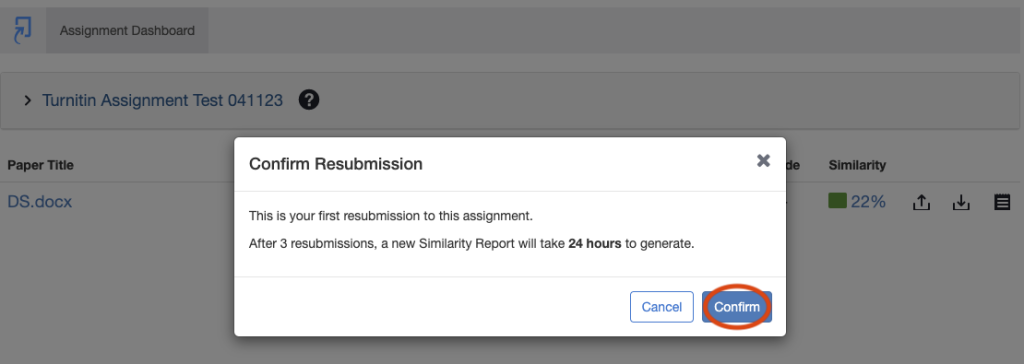
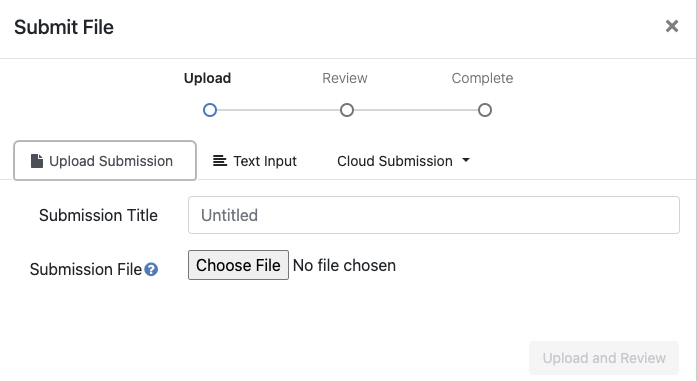
Once you have enabled multiple submissions, students will see an upload icon next to their original submission.